

Just a few hours ago, WordPress 2.8 was release to the general public (for the self-hosted version). I was notified within my admin portal and, after I did a quick database backup and downloaded all of my blog’s files, I clicked on the upgrade button. After a few seconds, WordPress told me that everything was successful. I was pretty amazed at how quickly the entire process took. Note: this is NOT unique to just WordPress 2.8 but also other releases of WordPress!
NOTE: I can help you fix your WordPress (self-hosted) issues. Read the information at the end of this article for more details!
So, I went to my blog’s main page to ensure that everything was working, and this is what I saw:
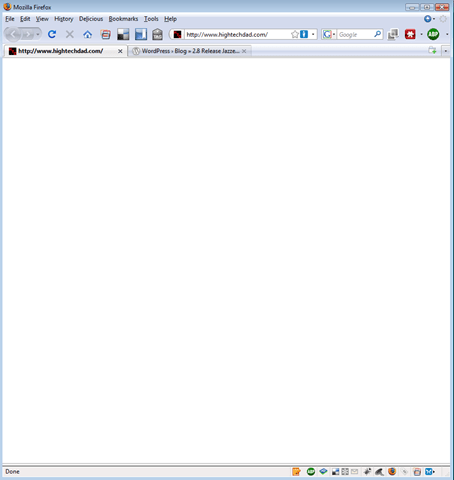
That’s right, absolutely NOTHING. Some people have referred to this as the “WordPress White Screen of Death“ or the “Blank Screen of Death“ or just “WSOD“. I went to the login page and it too, was not working. Ouch!
But after a few minutes of quickly troubleshooting (since I had been through this before), I corrected the issue. Here are some troubleshooting and fixes you might want to try if you encounter this issue. I hope that you find a solution within this list. If you do, please leave a comment and let me and other readers know! There are three things that you can try: plugins, wp-config and wp-settings. (There may be others but these are ones that have been proven to be culprits.)
Plugins – usually, after an upgrade, a plugin is the culprit. One way to quickly check to see if one of your plugins is problematic is to do the following:
- Rename “plugins”folder TEMPORARILY to something else – I changed my plugins folder to “plugins_temp” and then tried the login page again and was able to see it, so, immediately I knew that I had an issue with one of my many plugins. Note that once you log into WordPress after renaming the plugin folder, WordPress will automatically disable ALL of your plugins as a safety precaution. The problem is, in order to do the next step, you need to remember which ones you had active. Be sure to change the name of your plugin folder back to its original name of “plugins”
- Enable all your plugins at once – Once you are back in to the plugins section of the WordPress admin, and all of your plugins have been automatically disabled because of the step above, you can try this option by “bulk enabling” all of your plugins. WordPress should enable anything that doesn’t crash it and will disable any plugins that produce “fatal errors.” If any of your plugins are automatically disabled, they could be your culprit.
- Enable plugins one at a time – Optionally, if you are having trouble with the “bulk enable” step above, you could try to enable each plugin one by one.
Once you identify the problematic plugin or plugins, see if they have been updated. If they have, delete the ones on your server and replace with the newer versions. Hopefully that will work. Otherwise, just leave the bad plugins de-activated until they are updated.
Empty Line in wp-config.php file – one thing that you should check is the wp-config.php file (obviously, make sure that it is in the WordPress directory, AND that it has the proper DB information). Scroll to the last part of your wp-config file and double check that there is no extra space after the closing “?>” tag. IF there is a trailing space before the actual end of the file, delete that space so that you are sure that your file truly ends with that tag.
Good:
// Get everything else

require_once(ABSPATH.'wp-settings.php');

?>

-END OF FILE-
Bad:
// Get everything else

require_once(ABSPATH.'wp-settings.php');

?>
-END OF FILE-
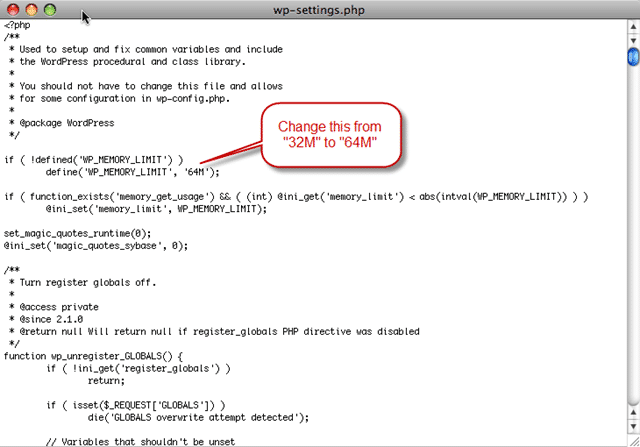
Tweak your wp-settings.php file – First, I don’t recommend really messing around with this file as it is pretty critical to the smooth operation of WordPress. However, I had noticed that when I migrated my blog over from a different hosting provider to a new one (in this case, BlueHost), that when I was activating some of my plugins, I was receiving the following error “Allowed memory size of 33554432 bytes exhausted” and the plugin was not activating. The way that I corrected that issue was by editing the “WP_MEMORY_LIMIT” setting within the wp-settings.php file. The WordPress “out-of-the-box” settings for this is “32M”, which explains why the memory size was exhausted (by this point, I was pretty exhausted as well). Note, that this error may be different for different hosting providers and may manifest in other ways.
So what I did, and what fixed the blank screen issue for me in the past and with this latest WordPress upgrade, was to change the value of WP_MEMORY_LIMIT from 32M to 64M. After I did that, everything worked just great!
So, my fix took actually all of about 2 seconds, but several hours of research, testing and tweaking to get to that fix.
Update: 12/27/10 – As I have now fixed quite a few of these issues on a variety of WordPress blogs, I have found that the items mentioned above might NOT correct your issue. You may have a script that is infecting your PHP files (I can help remove those), or you may have an issue with a theme or plugin. Additionally it may be another issue. But I can definitely help out. Read the NOTE below for details.
Note: I have received many requests for help each time a new version of WordPress comes out. I have helped a few people out but please realize that this does take time away from me writing reviews and other articles. However, I want to help, so I have come up with the following solution: I will ask for a $35 “up front fee” for me to review your FTP account and WordPress environment. After I receive that initial fee, if I can fix it, I will let you know and you can decide if you want me to proceed with the fix (for an additional fee typically starting at an additional $25). Depending on the amount of work, the additional fee could be a bit more (I haven’t charged more than $200)…but I’m not here to gouge you, just to get your WordPress blog back up and running. I will also keep you in the loop of what I am doing so that in the future, you can do it on your own. If you want my help, please fill out my WordPress Issue Form and I will get back to you quickly. You will need to provide me with both your FTP login information and WordPress admin credentials (which you can change after I fix or review the issue). I have helped people recover from iFrame viruses to reinstalling WordPress, so far with complete success!
Anyway, those are 3 things that you can test: Plugins, wp-config and wp-settings. If you find a fix that is different, please be sure to let me know!
Did you find this solution useful? If so: [paypal-donation reference=”WP WSOD”]
HTD Says: Be sure to follow Douglas Adams famous words of DON’T PANIC if you get the WordPress White Screen of Death. It is fixable!


213 comments
amit kumar
Really nice post
amena
thank you
Alexandra Cordes
thank you!
Financial Samurai
Interesting stuff. Ever see the WSOD AFTER you click on your website’s affiliate link to get to the affiliates homepage? This seems to happen to me somewhat regularly and I have no reason why.
See: http://personalcapital.go2cloud.org/aff_c?offer_id=4&aff_id=1002 (please delete after seeing)
Thx
Sam
Mizo
rename plugin folder works! Thanks! ;)
Fatima Hussain
I am doing a multilangual joboard site for a customer using wordpress and was thinking about using multisite brightverge.com one of them. The issue is that users would exist in English but not in French. So if someone switches from french to English, he would go to another website where he does not exist. The theme I am using does not support WPML (it breaks core features) .,.
jym
Thank you very much, i had a blank pages after updating some of my plugins, i was searching for hours for the right solution and i found it here you saved my life and a month of work thx again
Deepak
MICHAEL SHEEHAN I liked your post its really helpfull for me charmmmmmm..
thanks
sam
I change the Plugin folder as instructed and I was able to lo-gin and Fix the rest of the Problem. By enabling the Plugins one by one.
Debakant Mohanty.
Hey Michael, Great Article. It helped me in recovering my website. You saved my day!!
Regards,
Debakant, http://sharenconnect.com/
Amy
Tried a few of the suggestions, but wasn’t getting anywhere, so I went ahead and clicked through and asked Michael to help me. He responded almost immediately, fixed the problem, and charged me only a tiny amount. Saved me hours of frustration; what a relief!!
Jessica
Soon I’m going to add a blog to my website http://www.phonepartworld.com and will take care of this fact. Thanks for sharing.
Sven
Thanks!! You made my day!
djtonyz
I didn’t know about the white space issue after the trailing ?> and that helped me out tremendously. Thanks.
Greg
The renaming of the plugins folder worked for me.
badi3
even 5 years after you writing this article it’s still up to date. I made the update from 3.4 to 3.8 you saved me with you solution.
Lisa
Great, man the plugins were the cause, forget to reactivate!
Andy
Hello! Thank you so much for this post. My problem was the wp-config.php file, and I was missing the end php tag like this ?> I added this at the end of the file and now it works!! It’s worth checking.
Pwentdon Dwenton
I am testing like everything, but can’t get it to work. I have managed to create a blank page and it had worked, but then my blog showed as /about/blog/ and showed in the menu at the top, which I do not want. i want it to be /blog/ (listing of all blogs) and that be it. for example, if you go to my site, http://www.realmotorclubofamerica.com
hightechdad
Sorry for the delay in getting back to you. If you want me to look at it, please fill out my form with the required details and I can see what I can do. Here’s the WSOD form: https://www.hightechdad.com/contact-me/wordpress-issue-form/
Pwentdon Dwenton
Cool, I’ll fill out the form shortly my friend. No apology necessary, I know you have tons to do. I still hadn’t figured out how to fix the issue so hopefully you can fix it. I’ll make it worth your while some way.
lfz
Thanks, the plugins were screwing me over …
Thanks!
Amazing! fixed everything in under 5 min. thanks!
Amy
Thank you! This helped a lot!
Christine
Michael is FANTASTIC!! I thought I’d tried everything, but he was able to fix my WSOD issue so quickly I was up and running again in no time. I’m so relieved and couldn’t have asked for a better fixer for my WP probs. Thank you Michael!!
hightechdad
Thanks Christine! Glad that I could help you out!
Rm_Custom
What a RELIEF to know that this is fixable. All I did was change the url to one that originally was pointed to the main url, but I had changed it already with GoDaddy 4 day ago. One I made the change, it slowly became the WSOD! I tried to go back and change the name back, but it wouldn’t save the change? Now I can’t get in the back door at all to figure this out, or at the very least recover the content so that I can rebuild the site. Any recommendations as to what the next step would be based on the info below?
Warning: require(ABSPATHwp-includes/load.php) [function.require]: failed to open stream: No such file or directory in /home/content/x/x/x/xxx/html/xxx/wp-settings.php on line 21
Fatal error: require() [function.require]: Failed opening required ‘ABSPATHwp-includes/load.php’ (include_path=’.:/usr/local/php5/lib/php’) in /home/content/x/x/x/xxx/html/xxx/wp-settings.php on line 21
hightechdad
Sounds like an interesting scenario. I probably could help you out directly with that. Just fill out my WSOD form here: https://www.hightechdad.com/contact-me/wordpress-issue-form/
crazyblogger
Plugin was the culprit in my case. When I renamed the plugin folder my wordpress started to work again. Great post. You save my life :P
Philip
Hello Michael,
Thanks for the tips. However, I’m a little stuck on the wp-config.php file. I don’t have…
?>
-END OF FILE-
…that comes right below ‘wp-settings.php’);
Perhaps that’s causing my Wordpress Semiologic theme and W3 Total Cache plugin conflict. I have one post and one page that doesn’t allow me to edit them with W3TC activated. But I can edit my other 70 pages/posts.
When activating the twelve eleven theme with the W3TC plugin activated I can edit the post and page in question.
So I’m wondering would inserting the…
?>
-END OF FILE-
…fix the issue. I tried already but keep getting the following message…
Could not open /home/xxxxxxxxx/public_html/InternetTvDotCom.com/wp-config.php-11-24-11 for writing: Permission denied.
I’ve tried changing the permission from 755 to 777 for wp-config.php but that didn’t work either.Appreciate any help you can provide.Philip
hightechdad
First of all, you end the file with the “>” not with “- END OF FILE -” that was just a marker. If you need me to take a look, just fill out my WSOD form. Thx!
Rishi
Awesome Michael, thanks for the help in getting my site up and making it quick and painless, highly recommended!
Anonymous
awsome.. after reading a lot of topics about this, your solution of renaming the plugin folder is what it fix it.. i was getting really frustated… thank you again and thank you to explain it easily….
Yalalt_g
Thank you very much. It is working when I tried to switch off the plugins and enabling one by one. Thank you so much
Pureinoftech
Hi there, thank you for this post. This didn’t fix my problem but it did help me to think outside of the box and to start troubleshooting in a different way. I turns out that — this is kind of obvious but backup is the most important piece of data you can posses –, I fixed all the empty lines in the wp_config but this was not the problem (my question here will also be why there is empty lines in a particular file when I never edited the file?). Then because my problem was with the wp super cache plugin I checked the wp_cache_config and I compared it to an earlier version from backup and it turns out that the newer file was off for 4 lines of code, weird! I never have edited this file before in my life, then I just replaced the wp_cache_config with the backup, refreshed the website and what do you know! It worked.
I hope this helps some else in the same situation. Thanks!
http://pureinfotech.com
The Norwegian
Thanks for straighten up my blog after White Screen of Death. Excellent job. Thanks.
mat
Thank you for your advice which avoided me a heart attack
Matthieu
Sarah Jean Hoggan
Michael was phenomenal! I had several nasty problems: a corrupted page
causing the WSOD and Contact Forms that had NEVER worked correctly since the website
was created by a professional organization. Michael took the time necessary
to solve my problems. He was proactive, answered emails super quickly, charged
an extremely fair rate, and satisfied every small request. He is TRUSTABLE,
FAIR and will GET YOUR PROBLEMS SOLVED! Thanks Michael. :)
Faneendra
WOW, It is very useful post. I was facing the blank page on wp-admin but I follow above instructions & placed ?> and removed extra spaces. I was shocked due to think of Hacking. But now my blog http://hindi.moviechaska.com is working perfect & wp-admin page coming. Your solution is still important from 2 years.
Thanks a lot Michael
windows software downloads
thanks man
Dr. Arpan Kar
I am having a serious problem at my blog. Let me see if your suggestions work.
Dr. Arpan Kar
I tried all this, but the problem persists.
My blog name is Business Fundas (http://business-fundas.com)
Could you please suggest what has gone wrong?
hightechdad
It looks to me that you might have a virus or script infecting your site
(just from looking at it quickly). I can definitely help you correct
that. Please fill out this form and I will follow up with you:
https://www.hightechdad.com/contact-me/wordpress-issue-form/
I have fixed situations like this in the past. It’s a bit of a long
manual process though.
Tony
Excellent work. Disabling all the plugins and then bulk activating them worked like a charm to fix my WSOD.
BUMP!
kyle Hailey
Thanks – you saved another site !
– Kyle Hailey
Windows Hosting Guy
Hi Mike:
Thanks for this useful post. You pointed me in the right direction.
In my case the cause was wp-super-cache. I had to delete the plugin to bring home page back. Deactivating the plugin did not work.
Thanks again.
hightechdad
Thanks for pointing that out. That plug also writes to your .htaccess file so sometimes you can comment it out or remove it there.
Sreeraj
For me too same wp super cache plugin caused that trouble.After renaming plugins folder, i could log into dashboard and then i deactivated the theme. Tried to activate all plugins at once , but it showed error again. Then deleted all plugins and after renaming plugins folder uploaded all plugins and was able to activate it in bulk.
But i activated the same error-caused plugin now , but it now works well…
Used excavator auction
Advancing technologies and their swift adoption are upending traditional
business models. Senior executives need to think strategically about
how to prepare their organizations for the challenging new environment.
Sunny
Ty really nice post!
It helped me a lot. Plugin was d culprit.
My site again up and working http://www.TF2tech.com
Patrik
Thanks Michael for helping me out!
You saved me so muck time and agony, and now my site is up and running!
I can recommend you that have trouble, to ask Michael for help!
Thanks again / Patrik, Stockholm
Anup Narayanan
Thanks. Off all the resources available on the web for this problem, yours was the most useful. Thanks a ton.
Anup
peggy m
I tried to open my blog last night and got the dreaded white screen of death. ACK! Normally I try to fix everything computer-related myself, but I was in over my head.
I googled around & found HighTechDad’s website and thought he looks like a good, honest, technically proficient guy, and sure enough, my vibes were correct. He figured out and fixed the problem in about an hour, and he went above and beyond the call of duty by helping me with a few other blog things. WHAT A GUY!
Photogirl79
The blog name is http://www.facialandbotox.com. What happened was I changed the db password. After I did this the blog disconnected from the DB… somehow I fixed that, and now when you go to the site you will see it is up and running just fine. The problem is when I try to login to the wordpress site through the admin panel, as soon as I put in a username/password I get the “blank white screen of death”. I have no idea what’s going on but I did make sure to update the php.config file with the new db-pword. Any suggestions would be greatly appreciated.
hightechdad
I can definitely take a look at it to see what might be wrong. Please
read the information on this page
(https://www.hightechdad.com/contact-me/wordpress-issue-form/) and then
fill out and submit the form. Once I receive the information, I can
begin troubleshooting your WordPress issue.
Thanks!
Photogirl79
I have to tell you- you so rock! Super fast response and you don’t even know me! Why, you’re almost like an angel of sorts, aren’t you? I totally appreciate your assistance, nothing but good karma coming your way…
As it happens, (and if you can believe this) I’ve actually got it figured out. I cheated though ha ha, I host w/ Godaddy.com and you can roll back the .config file, and this is how I fixed it.
Just know now next time I have trouble- instead of surfing the internet for hours bound to figure it out myself, I’m coming here. All hail “High Tech Dad”…
Thanks again!
Deborah
Thanks so much for your help Michael. I really appreciate it. I would recommend anyone who can’t fix their site on their own, to contact Michael to fix it. He did a great job. Thanks again.
rmfried
This post helped me to find which plug in was causing problems and I was able to get pages and posts up and running again. Thanks!
hightechdad
Thanks for the comment and the donation. Glad that it worked for you!
-Michael
LeBaron Washington
In the config.php file, I did notice there wasn’t a closing ?> . So I placed one there. In my wp-settings.php fill, I didn’t see any place to exchange 32M to 64M so I left that file alone. Even though I did make that small change in my config.php, I still get a blank home page. Thank anyway.
Sincerely,
Leapole7
hightechdad
If you are still having issues, please fill out my contact form and I can help you get it fixed.
BellRock2012
Thank you, Thank you, Thank you! Saved me a lot of time and frustration. Just renamed the plugins folder _bad and then logged in, renamed plugins back to normal and tried 3x before it let me activate all. The only one that updated was… SecureWordPress. Thank you so much!
Creative Tv
Merci pour cette précieuse aide !