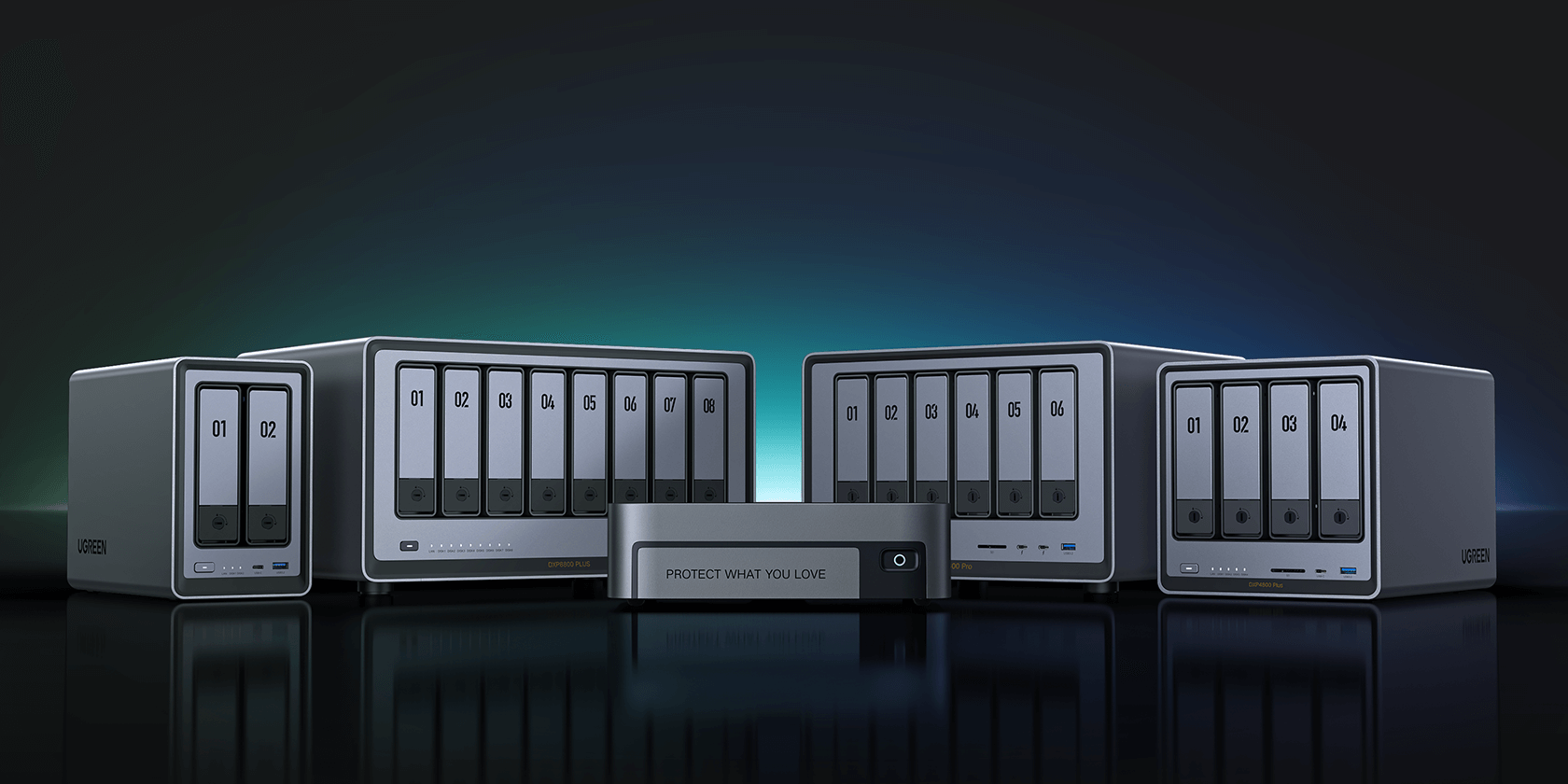
UGREEN NASync Series funds on Kickstarter in 5 Minutes! Network Attached Storage (NAS) Solutions
Within 5 minutes, this Kickstarter was fully funded! Introducing the UGREEN NASync Network Attached Storage (NAS) – what it is & why you might want it!


Within 5 minutes, this Kickstarter was fully funded! Introducing the UGREEN NASync Network Attached Storage (NAS) – what it is & why you might want it!
This article and video shows how to diagnose and repair a leaking KitchenAid Dishwasher. The part is only $10 and the repair is fairly easy.
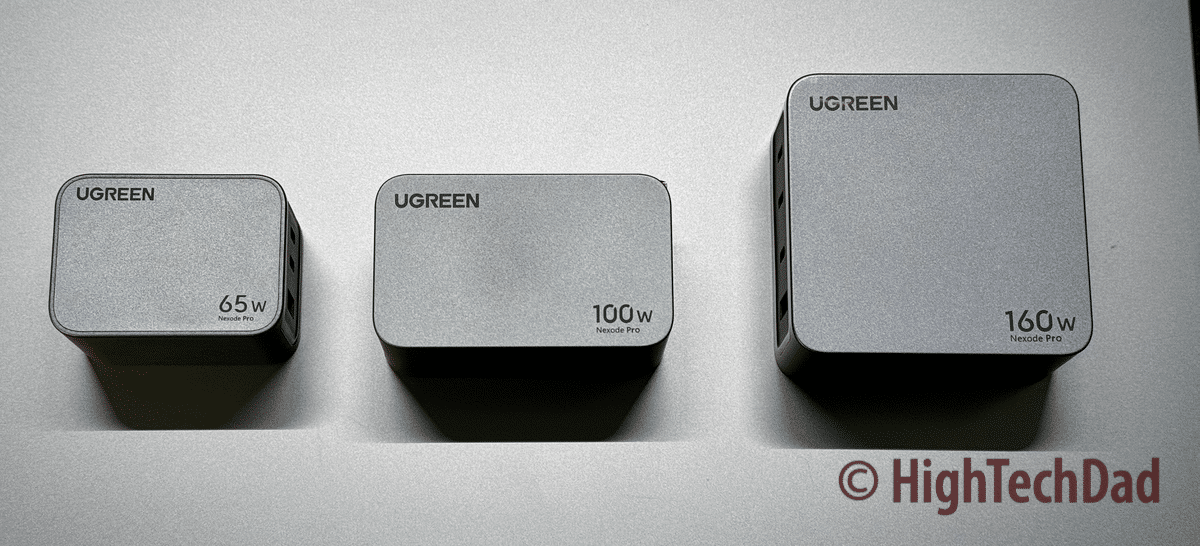
Review of the UGREEN Nexode Pro GaN charger series – 65W, 100W, and 160W versions of this versatile, compact, and powerful charger line.
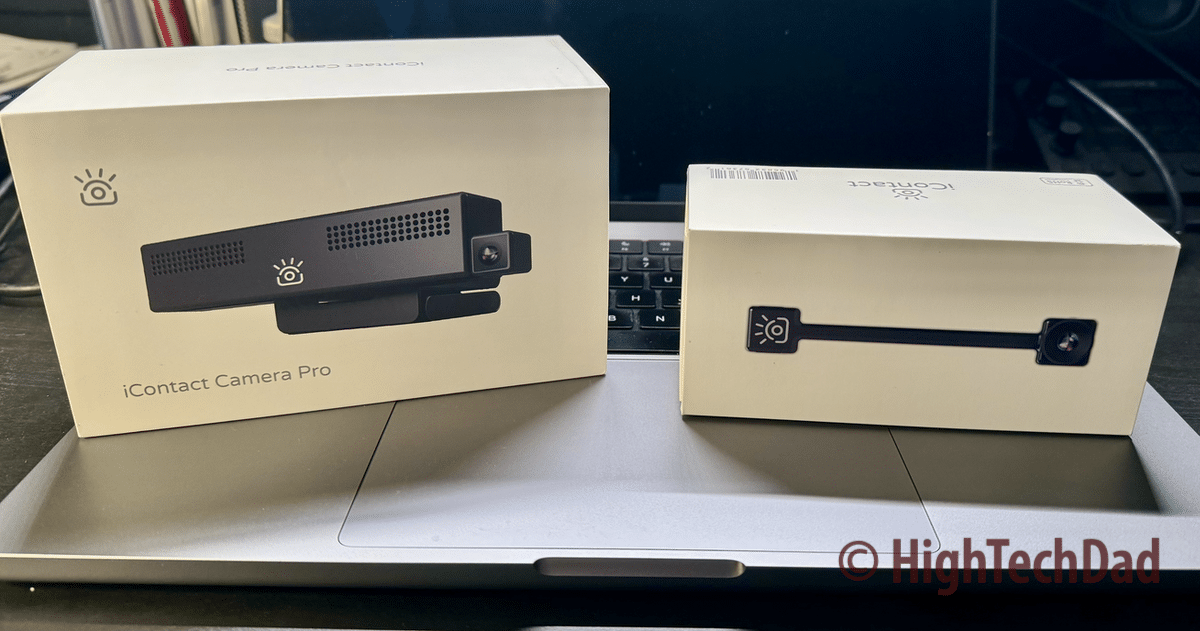
Review & video walkthrough of the iContact Camera (for laptops) & iContact Camera Pro (for monitors) – a webcam which guarantees eye contact with your audience.
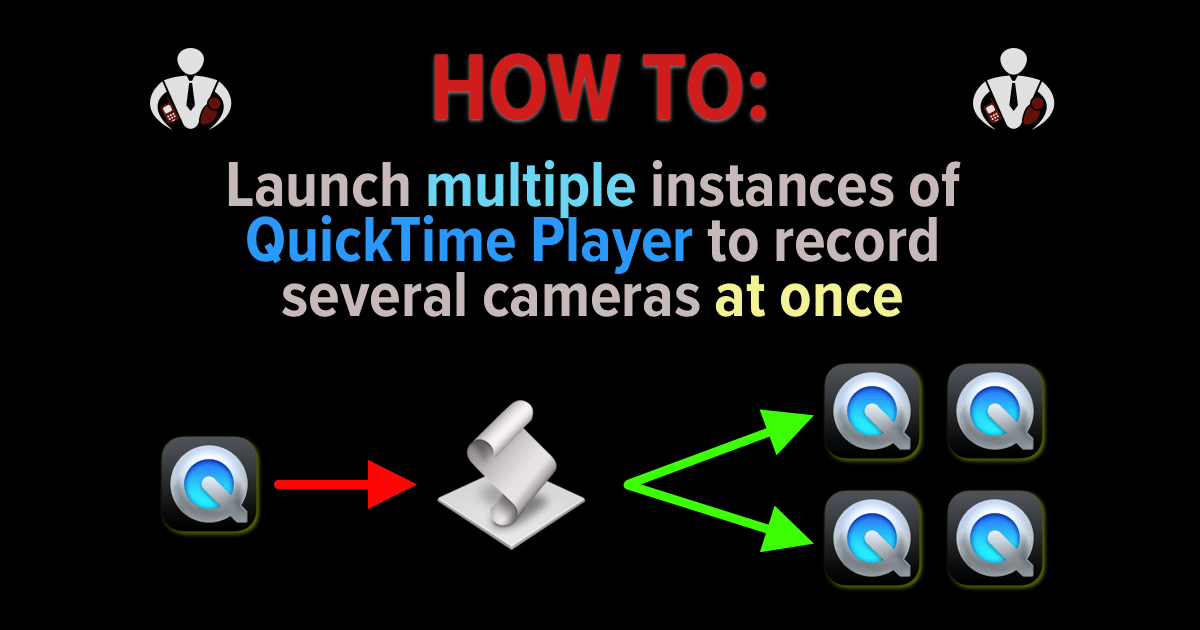
This How-To articles discusses how to launch multiple instances of QuickTime Player so that you can record different video/audio inputs simultaneously. You can use a Terminal command or create an AppleScript application.
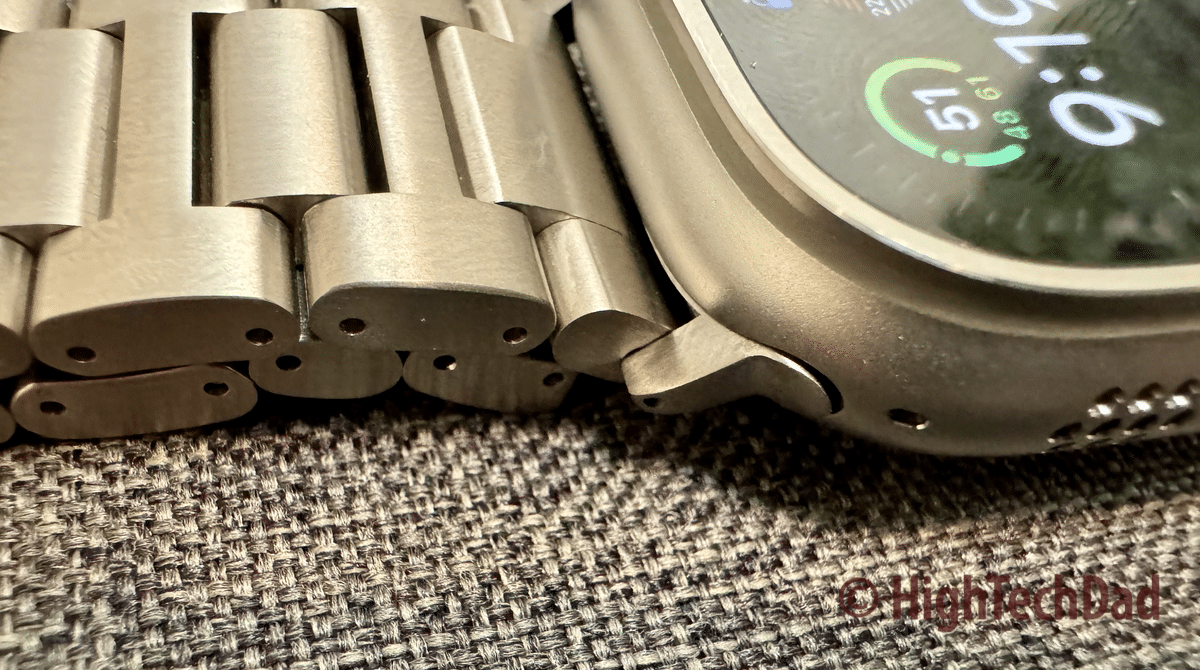
Review of the SANDMARC Titanium Band for Apple Watch Ultra/Ultra 2 – this high-end, elegant, & stylish Titanium Grade 4 watch band bring the Apple Watch to another level!
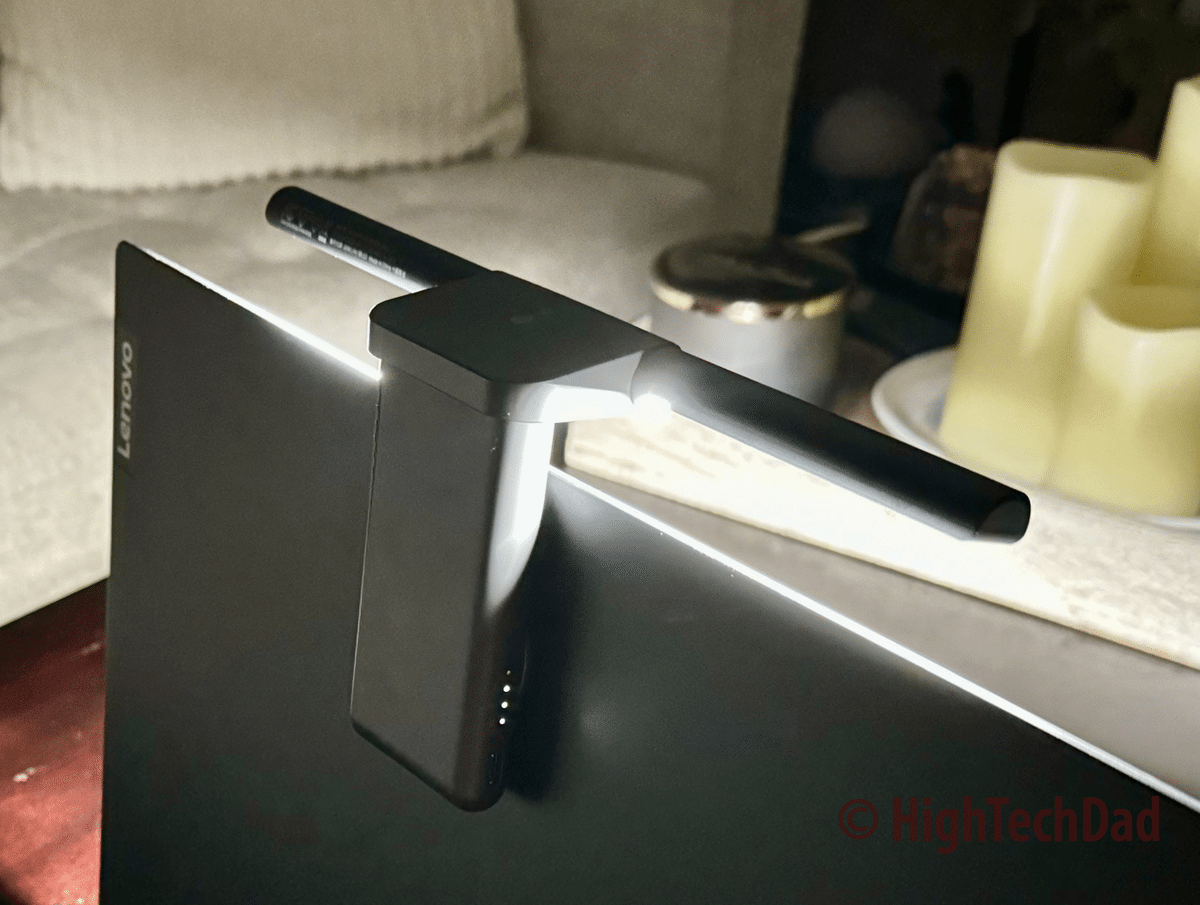
Review of the BenQ LaptopBar Light – a portable lighting solution that attaches to laptop lids – color temp/brightness adjustable & two lighting positions.
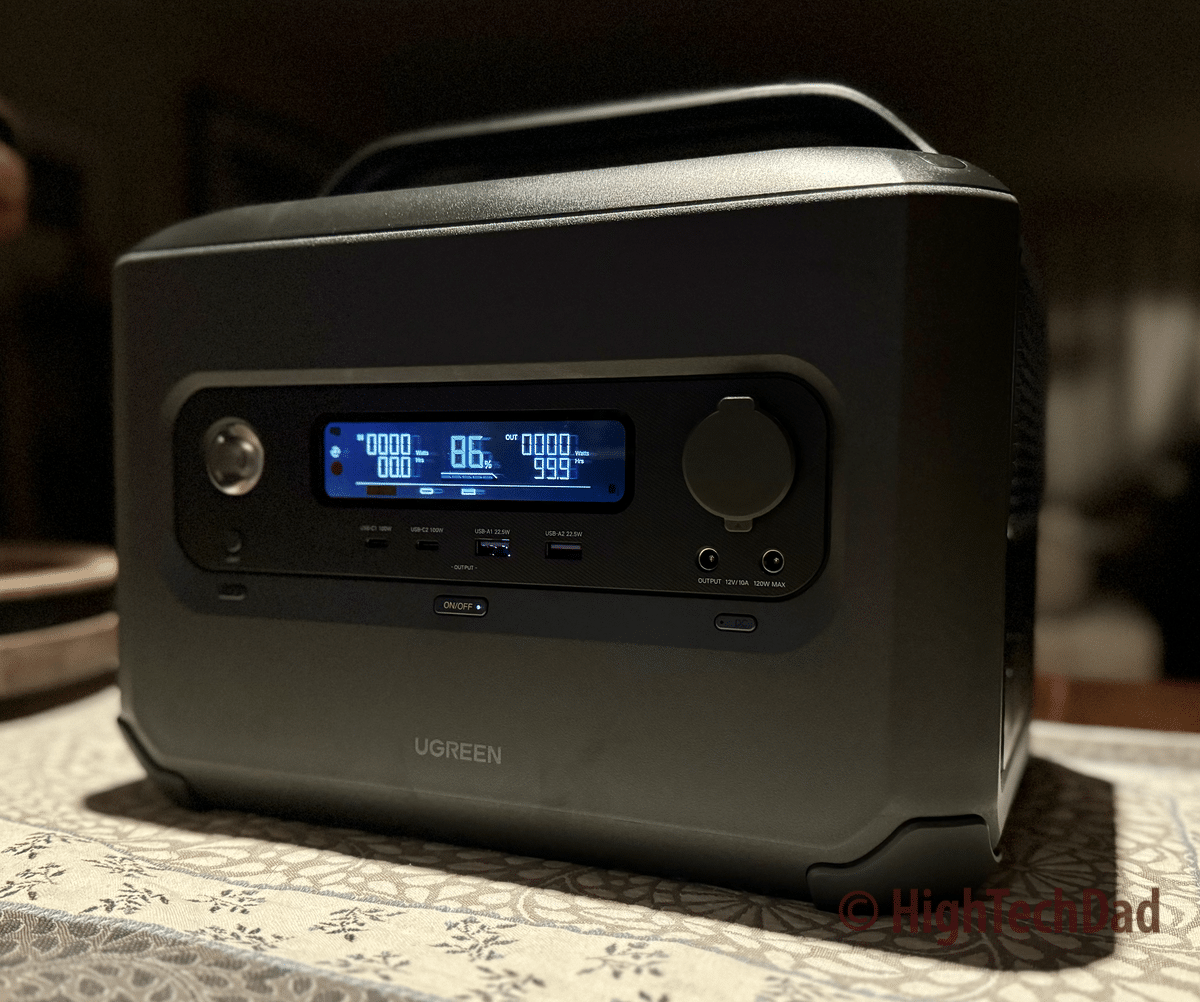
Review and video of the UGREEN PowerRoam 1200, a versatile portable power station for fun or emergencies, offering fast recharging via wall, solar, or car.
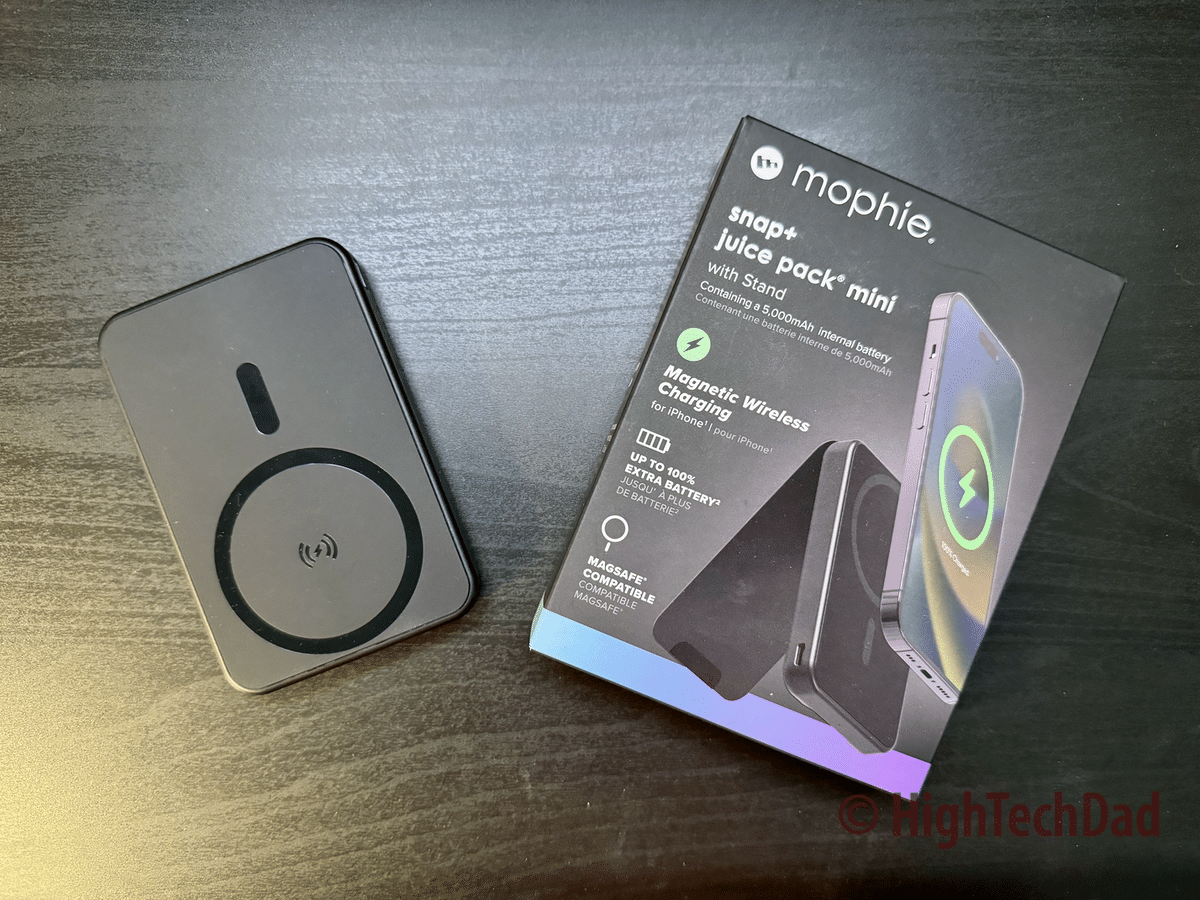
Review of the Mophie snap+ juice pack mini with stand which offers MagSafe & wireless charging as well as USB-C charging with a unique stand – Video & Unboxing.