


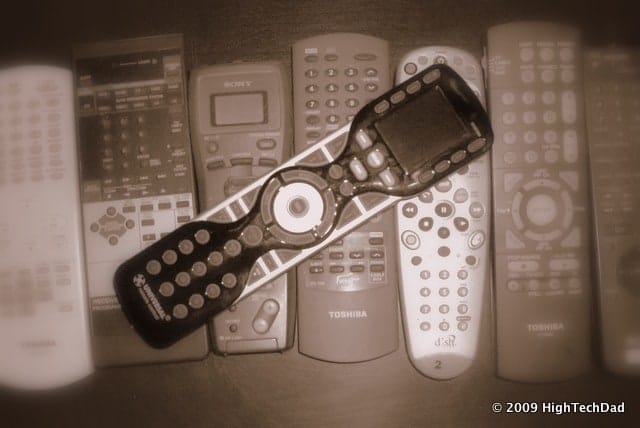
I have got an exercise for you. Go around your house and gather up all of the remote controls. I came up with about 15-20. I think that my family would fall apart without their remotes, so it is pretty bad for us to lose one. Also, we seem to have remotes for things that we no longer own. I mean, who uses a VCR anymore anyway? And how many of you have lost remotes? Did you check under those sofa pillows? Well, you might not need to worry about too many or missing remotes any more. Just pick up a Universal Remote Control R50.
I’m starting to put together a series of gadget blog posts that would be great gifts, especially for Father’s Day. The URC R50 would definitely be on that list. The R50 is a reasonably priced (MSRP is $149 but you can find it for less, around the $80-90 range), easy to use, extremely functional universal remote control.
Before I go down into my review of the URC R50, I did want to provide some framework around universal remote controllers. These can range from a controller that you get with from your cable or satellite company (which can control things like your TV, DVD and other components), to the “cheap-o” remotes that you can pick up at the supermarket or radio shack (which are, let’s face it, pretty darn ugly), to higher-end remotes like a Monster Central or Logitech Harmony remote.
The Universal Remote Control R50 competes with the likes of Monster and Logitech, but with some clear cut differences, (and especially against the lower end remotes):
- No computer is required for programming
- No bulky help manual
- No losing code sheets or having to look up codes online
- No looking for the USB cable to sync up changes
Briefly, the interface is intuitive and functional. While I usually can pick up on tech pretty easily, when I showed how to program the R50 to a less technically inclined co-worker, they understood it very well.
The R50 Look & Feel
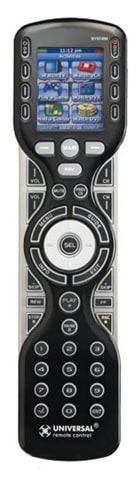
The top of the device has an LCD screen which shows all of the required information from devices & favorites to settings & setup. On the top two buttons are for Power (On/Off) followed by buttons that are tied to information that is displayed on the LCD screen (e.g., devices, macros, wizard choices, etc.) Directly below the screen are Next/Previous type buttons, the critical Main button (which gets to back to the main screen) and a Fav button to launch favorite channels. Also, holding down the Main button for a few seconds launches the setup functionality. Channel Up/Down and Volume Up/Down are on opposing sides with Mute & Previous Channel buttons in the middle.
In the middle of the remote is the requisite Select button with a directional circle for navigating through menus (e.g., on a DVD). Surrounding that are 4 other buttons that can be mapped to various devices: Menu, Guide, Info & Exit. These typically come in to play with DVRs or Cable/Satellite controllers.
Directly beneath the middle are buttons that are used for DVR/VCR/DVD playback: Skip (back), Skip (forward), Fast Forward, Reverse and Record. The Play and Pause buttons are conveniently located in the center.
The bottom of the remote consists of a number pad. On the right side of the remote towards the top is a Light button which fires up the backlit buttons so you don’t have to try to squint in the dark to find the button you need.
Note: the Channel Up/Down, Volume Up/Down and playback buttons (Skip, FF, Rev & Rec) are all on a level that is slightly lower than the other buttons. While this looks nice, I’m concerned that a user’s thumb might get confused by this and periodically hit the higher up buttons accidentally. I’m sure over time that users can get accustomed to this.
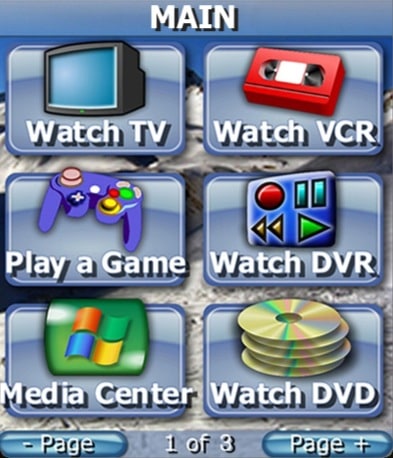
Once you configure your remote, your Main screen looks something like this:
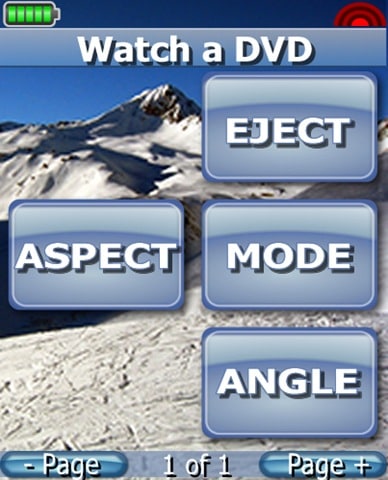
And once you select a device or run a Macro (e.g. like Watch DVD), you get a series of other controls for that specific device. What is shown below are some for watching a DVD.
R50 Functionality
The specifications as defined on the Universal Remote site are as follows:
- Size: 2.3″ x 8.9″ x 1.1″ (W x H x D)
- Weight: 0.55 lbs (w/ batteries)
- Range: Range: IR (infrared): 30 – 50 feet. Approximate range will vary depending upon operational and environmental conditions
- Power Supply: AA x 4 (included)
- Warranty: 1 year parts & labor when purchased from an authorized dealer
But enough about that. What is really great about this remote is the fact that it is extremely easy to set up. There is only a “Quick Start Guide” included in the box that doesn’t really go into all of the functionality. I was a bit surprised at this initially but then I understood why after starting to play around with the R50. All of the documentation is built into the device itself through a series of interactive screens. I will go into the Programmability in the next section.
You can program up to 18 devices or components with this remote AND you can do so without the need to look up Remote Control codes on-line or in a manual somewhere. They are simply built-in. Once you have set up your devices, you can assign Macros to them. In fact, you can set up up to 1500 macros with 255 steps each. What does that mean? Say you have a series of steps that you need to do in order to watch something on satellite. In the past, you had to turn on your TV, turn on your satellite device, set the TV to the proper input, turn on your tuner or hi-fi, set the tuner to the proper component, etc. When you do this, you normally have to pick up a bunch of remotes and it takes a few minutes at best. With the R50, you just set up a Macro that does all of these functions and just click it and sit back and let the remote do the rest.
Having Macros will help people who aren’t familiar with your A/V setup. Have you ever had a babysitter, friend or family member come over and want to watch a show or play a DVD but gave up because they just couldn’t figure out what remote to use or what button to push? With the URC R50, you can program all of this via a Macro.
R50 Programmability
I have had experience with the Logitech Harmony Remotes as well as Monster Central’s similar remotes (they have the same underlying operating system). With those devices, you need to connect the remote to a USB cable and then to a computer. Using software, you work through a series of set-up wizards and eventually upload a configuration to your remote. It works, actually pretty well, BUT it does require having a cable AND a computer AND an Internet connection. That can be an inconvenience.
The Universal Remote Control R50 avoids these issues by having all of the configuration and programmability built-in to the device. The setup is actually very easy and straight forward.
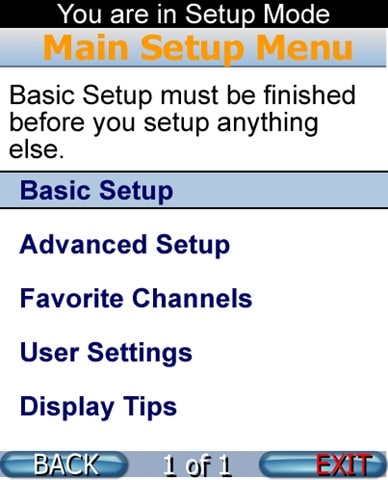
The main Setup Menu includes the following:
- Basic Setup
- Advanced Setup
- Favorite Channels
- User Settings
- Display Tips – simply toggles Tips on or off
Basic Setup
The Basic Setup contains:
- Search the Database – This is where you will spend the beginning of your configuration time. In this area, you set up all of your devices and components based on selecting the device, labeling the device, choosing the manufacturer or brand and then testing out various codes (all done behind the scenes).
- LEARN – Allows you to train the R50 with a remote that might not show up in the database.
- Delete a Device – If you mess up, you can just delete a device.
- Review Code Set – Once you program devices, you can see the code number of those you configured.
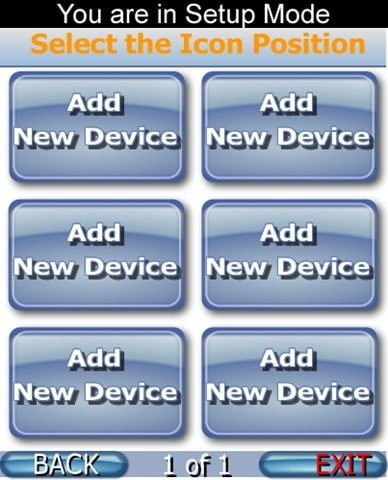
Part of the process is selecting a “button” for your newly configured device:
Advanced Setup
The Advanced Setup contains:
- Copy & Paste – Allows you to copy things like “Volume Up/Down” from one device to other devices or macros. That means that your volume would work on your TV, for example, when you are controlling the DVD.
- Macros – As explained in the previous section (“Functionality”), Macros can let you fire off a bunch of different commands that control different components. Think of it as a series of button pushes on different remotes doing different things all chained together.
- Hide or Display Pages – You can hide pages on devices or on the Main Menu.
- Edit Labels – Change the Labels on the Main Menu or within a device.
- Erasing – The section allows you to erase a button, everything on 1 device or everywhere.
Favorite Channels
The Favorite Channels includes:
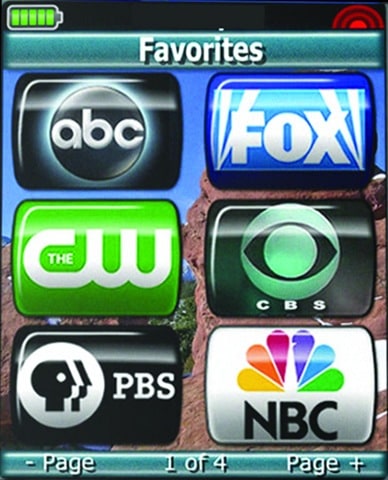
- Add/Edit Favs – You can easily add favorite channels to your remote, which allows you to simply push 1 button to go to that station. There are almost 10 pages of buttons that have the logos of the stations.
- Delete Favs – If you need to delete any buttons, this is where you do it.
Favorites are super easy to set up and use. Once configured, it looks like this:
User Setting
The User Settings has:
- Color Screen – Set your Brightness and Auto Turn Off Timing.
- Button Lighting – Set whether you want you want the buttons to light up when you view the LCD screen, as well as the amount of time before the device powers back down.
- System & Battery Info – Check your Power and Memory status.
- Factory Reset – Revert your device back to its original settings.
Summing It All Up
I must admit, I was a bit skeptical about how well this remote would be to set up. I have used other cheaper “universal remotes” but those typically came with a tiny manual full of various codes that you had to keep trying and configuring. Also, the URC R50 looked like it was trying to be a Logitech Harmony or Monster Central remote. The fact is, the LCD is a pretty necessary for a device like this. I would never purchase a remote now without one.
One concern that I do have is that after a few years, the remote database may become outdated, especially as new A/V components are created. (This is one advantage of the ones that Logitech and Monster Central have in that their database resides online.) Luckily, most manufacturers seem to follow their pre-established IR codes. Also, you always have the ability to train the R50 with newer controllers. I did a quick search for my Roku box and did find it included (along with 12 pages of other manufacturers) under the AUX device settings. Practically every device that you have will probably be in the R50 DB somewhere.
I thought that I should mention one really innovative feature called Sofa Mode which preserves battery life by shutting off the device after a certain period of time if a button is pressed for an extended period of time. This could be if the remote is under a pillow on a couch or something. Good thinking!
The Universal Remote Control R50 is currently, as of this writing, on sale at Amazon for $82.59. This is a great price for a critical gadget for any household. Once you have the R50 configured, you can let all of those other remote controls gather dust in a drawer somewhere. It uses standard AA batteries so there is no need to plug in a charger anywhere or worry about having to replace rechargeable batteries when they do eventually die. Also, once set up, the R50 interface is easy enough to understand that even a child can use it.
HTD Says: The Universal Remote Control R50 is…let’s face it, universal. It can control almost any A/V device that you throw at it. It just can’t make your coffee in the morning…yet!


5 comments
Sugarbearars
i have the klipsch cs700 will this remote work with this? i have shopped and shopped for a remote for this unsucessfull buying many remotes that bestbuy said would work . please help.
Family Anatomy
The interface on this one looks sharp! I've always been interested in the URC line, but I have to say, I love my Harmony One.
hightechdad
Yes the interface is actually quite good. I'm hoping to do a review of the Harmony in the future.
Family Anatomy
The interface on this one looks sharp! I've always been interested in the URC line, but I have to say, I love my Harmony One.
hightechdad
Yes the interface is actually quite good. I'm hoping to do a review of the Harmony in the future.