


There is a nice little toggle within Windows Explorer (not Internet Explorer, I’m talking about the way that you can look at your files on your hard drive) that allows you to “group” the files based on whatever field you select. I found it helpful when you are looking for a type of file or to group by the modified date. To enable the “grouping” option, just launch your Windows Explorer (hint, if you have a Windows key, hit “Windows” and “E” and that will launch Explorer). Then go to VIEW > ARRANGE ICONS BY > SHOW IN GROUPS. See screenshot below:
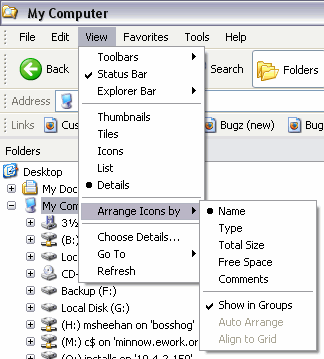
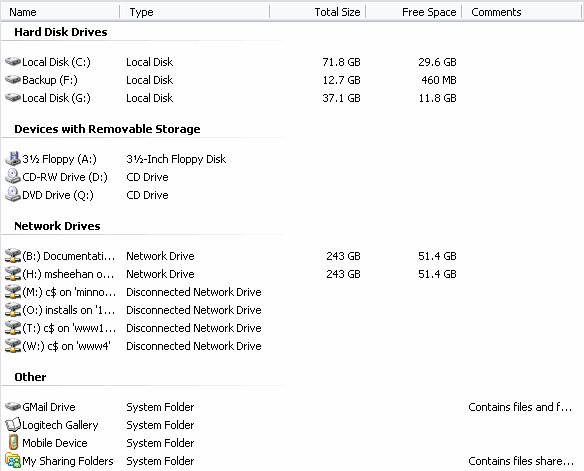
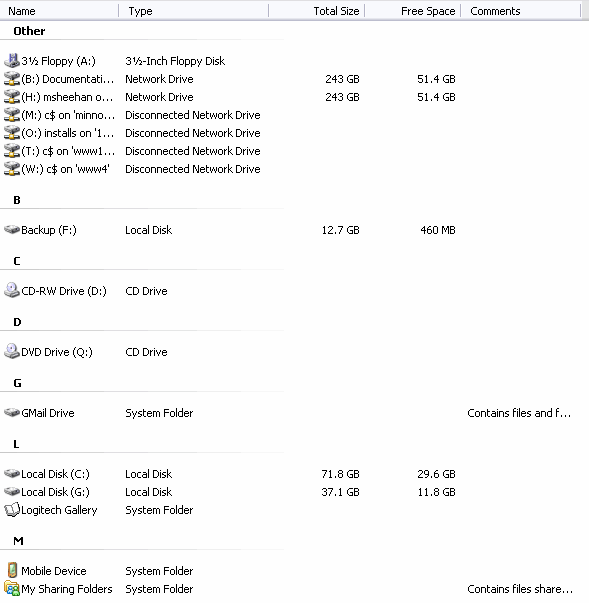
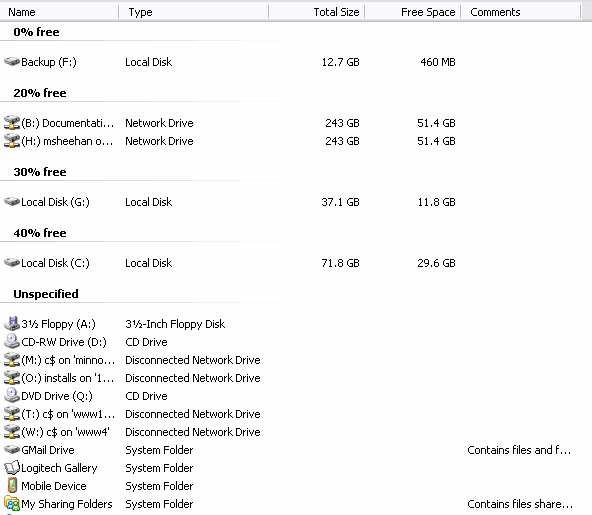
Once you have done that, you can play around with the different grouping options simply by clicking on the appropriate column. So a picture is worth a thousand words so check out the screen shots below on some of my grouping results. I chose to just show “My Computer” groupings for simplicity’s sake. Enjoy the “view groups” below:
View by “Type”:
View by “Name”:
View by “Total Size”:

View by ” Free Space”:
Hope that helps a bit with your organization.


3 comments
VistaUser
The groupings piss me off – glad you showed me how to get rid of them!
mr570
Wow… I didn’t realize this was a built-in feature in Windows. I like the group by views!
Thanks for the post!
~ Erich
mr570
Wow… I didn’t realize this was a built-in feature in Windows. I like the group by views!
Thanks for the post!
~ Erich